The HostBill module connects a service account to one DCIM server. HostBill lifecycle actions update DCIM, while Active services receive a customer area for power, provisioning, remote console and recent activity.
One App Connection can be reused across several products. Configure the datacenter on each product so separate products can expose different server pools without duplicating API credentials.
View the HostBill integration overviewRequirements
- HostBill running PHP 7.4 through PHP 8.3.
- PHP cURL and JSON extensions enabled.
- A reachable DCIM API base URL ending in /v1.
- A dedicated DCIM API token with the ADMIN audience.
- A public HTTPS/WSS URL for every agent used by customer remote console sessions.
API token scopes
Create a dedicated token in the DCIM dashboard with the ADMIN audience and these scopes:
SERVER_READSERVER_POWERSERVER_PROVISIONSERVER_REMOTE_CONSOLEPART_READSWITCH_PORT_MANAGEJOB_READLOG_READRestrict the token
Restrict the token to the HostBill server's public IP whenever possible. Do not reuse a dashboard or agent token.
Install the module
- 01Obtain dcim.tar.gz from the DCIM distribution package.
- 02Copy the archive to the HostBill server.
- 03Extract it into the HostBill application root.
- 04Confirm that includes/modules/Hosting/dcim/class.dcim.php exists.
- 05Open HostBill and create an App Connection using DCIM.
Extract the HostBill module
tar -xzf dcim.tar.gz -C /path/to/hostbillExpected module path
The archive contains the complete HostBill-relative directory structure.
includes/modules/Hosting/dcim/class.dcim.phpUpgrading the module
Extract a newer archive over the same HostBill root. Existing App Connections, product options and account assignments are stored by HostBill and remain in place.
Create the App Connection
- 01Open Apps Connections in HostBill.
- 02Add a connection using the DCIM module.
- 03Set DCIM API URL to the HTTPS API base URL, including /v1.
- 04Paste the dedicated ADMIN token into DCIM API token.
- 05Run Test Configuration and confirm that HostBill reports success.
Connect a product
- 01Open the HostBill product and select the Connect with App tab.
- 02Choose DCIM and the App Connection created earlier.
- 03Use Get values from server if HostBill has not loaded the module options yet.
- 04Choose the datacenter for this product. Only STOCK servers from it are selectable.
- 05Configure the Create, Suspend, Unsuspend and Terminate actions, then save the product.
Product lifecycle options
Create
- Add account tag: adds HB-account_id to the selected server.
- Assign Main IP: assigns HostBill's service Main IP and marks it primary in DCIM.
- Set status ACTIVE: changes the DCIM lifecycle status after assignment.
Suspend and Unsuspend
- Disable switch port: disables the primary connected switch port.
- Power off server: submits a DCIM power-off job.
- Unsuspend provides the matching enable-port and power-on actions.
Terminate or Cancel
- Enable switch port: restores the natural enabled state before reuse.
- Power off server: leaves the hardware off for the next provisioning.
- Unassign all IPs: removes every DCIM IP assignment from the server.
- Remove account tag: removes only the matching HostBill account tag.
- Return to STOCK: restores the inventory hostname and STOCK status.
Natural termination state
The recommended termination flow enables the switch port first, powers the server off, removes IPs and the account tag, restores STOCK, then clears the HostBill server assignment. The next operator receives reachable networking when the server is powered on for provisioning.
Lifecycle behaviour
| HostBill action | DCIM behaviour |
|---|---|
| Create | Requires a STOCK server, assigns the HostBill Main IP when enabled, adds HB-{account_id} and can set ACTIVE. |
| Suspend | Disables the primary switch port and can request server power-off. |
| Unsuspend | Enables the primary switch port and can request server power-on. |
| Terminate | Enables the port, powers off, unassigns IPs, removes the account tag, returns the server to STOCK and clears server-id in HostBill. |
Power and switch operations are asynchronous. HostBill records success after DCIM accepts the job. A Create retry is idempotent when the matching account tag already exists.
Account server assignment
Each account receives a searchable
Server ID selector. It lists only STOCK servers from the product datacenter and displays the server name with its short ID.The Main IP comes from HostBill's standard service IP, exposed as
{$service.ip} in email templates. Assign the address through HostBill IPAM; the module does not create a separate IP field.Customer management
Active services replace the default service content with the DCIM customer controls. Customers can inspect device information, run power actions, start or cancel provisioning, open remote console sessions and review recent logs.
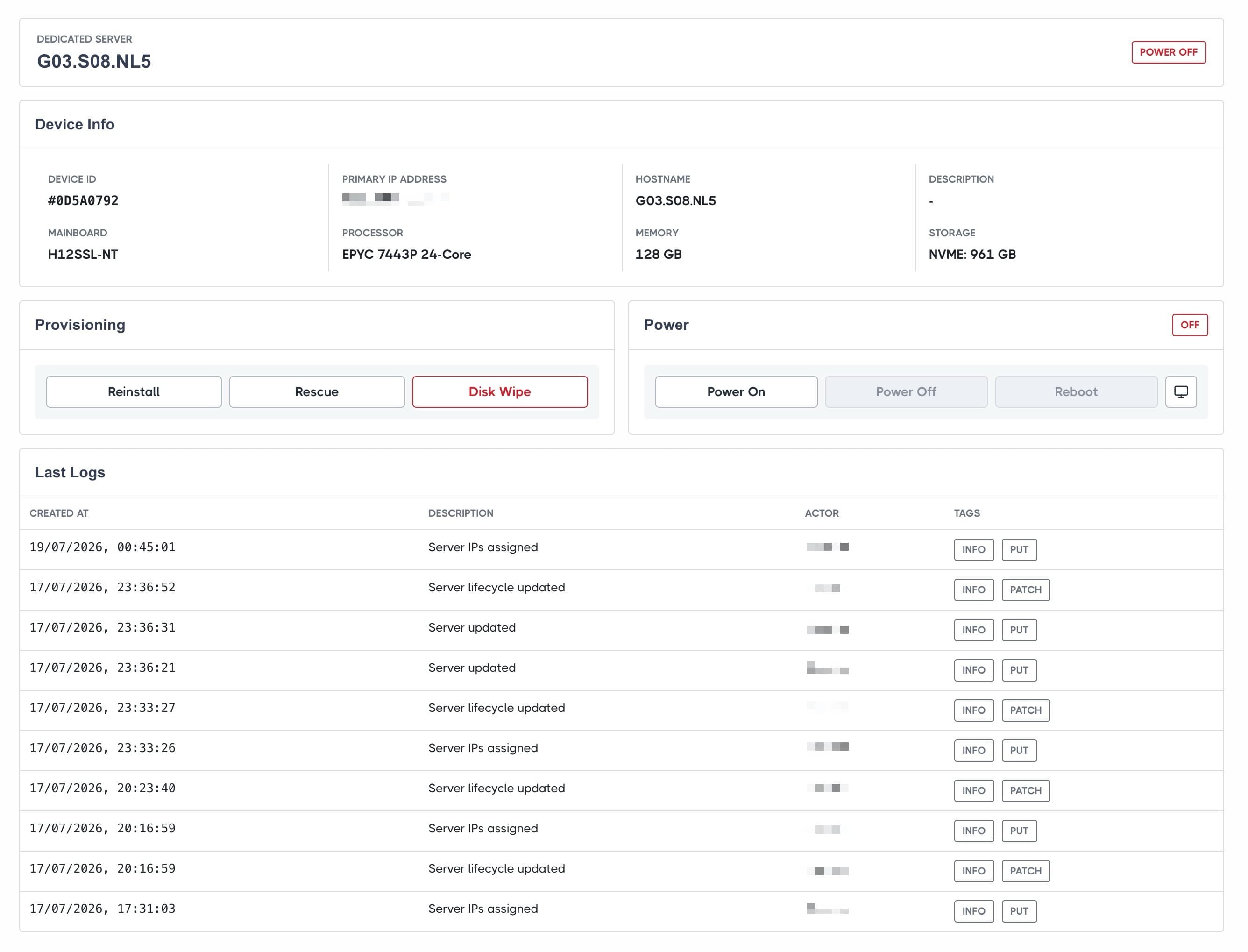
Client access boundary
Inventory status, switch-port controls and discovery remain admin-only. Suspended, terminated and cancelled services cannot call DCIM management actions.
Remote console requirements
The customer browser connects directly to the DCIM agent. Its configured URL must use HTTPS, have a valid public certificate and be reachable by the customer. The WebSocket connection uses WSS.
No BMC credentials in HostBill
HostBill receives a short-lived viewer session. Customers do not receive the BMC username or password.
Verify the integration
- 01The App Connection test succeeds.
- 02The product shows a datacenter and lifecycle options.
- 03The account Server ID selector loads STOCK servers from that datacenter.
- 04Create assigns the selected server, account tag and Main IP as configured.
- 05An Active service opens the DCIM customer management page.
Troubleshooting
Test Configuration fails
Confirm the URL ends in
/v1, the token uses the ADMIN audience and every required scope is present. Also confirm that the HostBill server can reach the DCIM HTTPS endpoint.The Server ID list is empty
Select a datacenter on the product and confirm that it contains servers with STOCK status. Servers assigned to another HostBill account are rejected.
Create reports that Main IP is missing
Assign the service Main IP in HostBill IPAM before running Create, or disable the product's Assign Main IP option.
The customer page is not displayed
The HostBill service must be Active, connected to the DCIM App and have a valid Server ID assignment.
Remote console does not connect
Verify the agent is online, its URL uses HTTPS, the certificate is valid and the customer network can open the agent WSS endpoint.