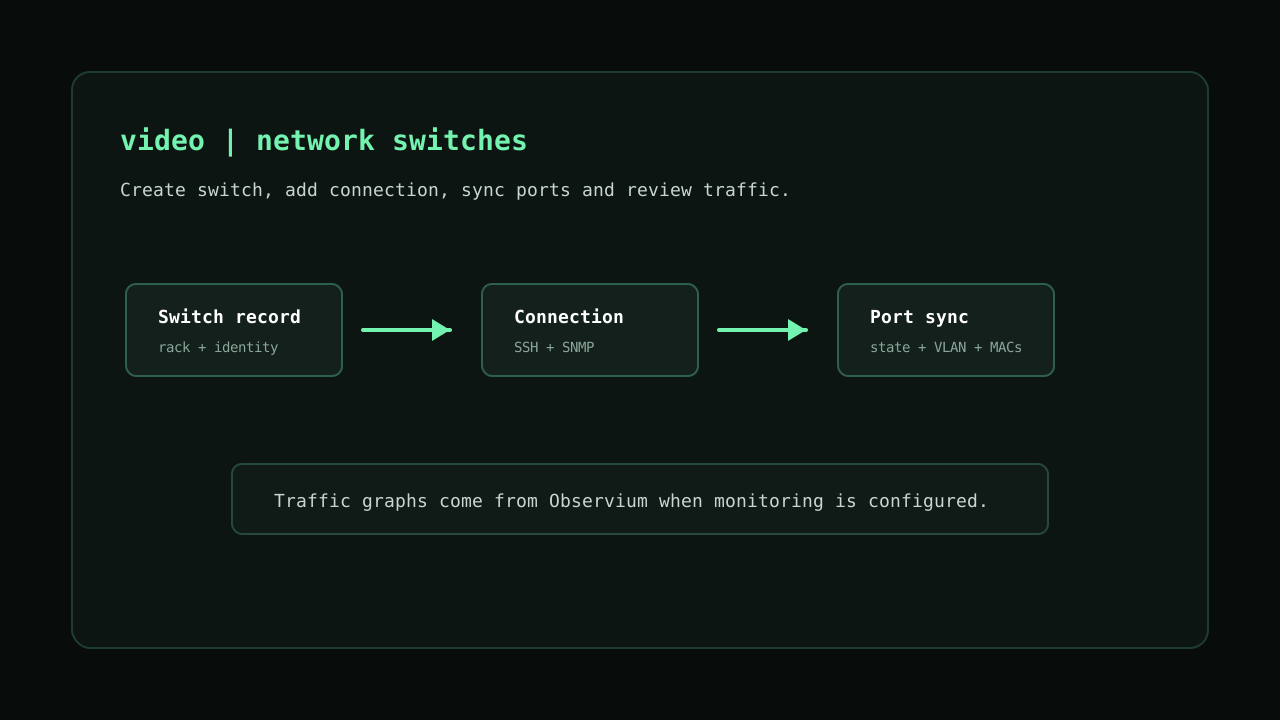
Switch management starts in
Devices > Switches. A switch record can be used only for inventory, rack placement and hardware identity, or it can be connected to DCIM for port sync, port changes and monitoring traffic.Create the datacenter, rack and agent first. Port actions depend on the rack agent because the agent reaches the switch management network from inside the datacenter. If the switch rack has no online agent, DCIM keeps switch actions disabled.
If you are still preparing the basics, review Datacenters, Racks and Agents before connecting the first switch.
Create a switch
Open
Devices > Switches and use Create Switch. Fill placement fields first, then add the identity and monitoring fields that apply to the real device.Datacenter and Rack
Select the datacenter where the switch is installed. Select the rack when the switch is mounted. Rack assignment is important because DCIM uses that rack to find the agent that should run switch jobs.
Size U and Position
Set
Size U to the physical height of the switch. Set Position to the starting rack unit when the switch is mounted. Leave position empty until the exact placement is known.Label, Name and Hostname
Use
Label for the physical or operational label on the device. Use Name for the DCIM display name. Use Hostname when the switch has a DNS name or management hostname.Status
Use
STOCK before the switch is installed. Use ACTIVE when it is in service. Use MAINTENANCE, FAILED or RETIRED when the lifecycle changes.Vendor, Model, Serial Number and Asset Tag
These fields make the switch searchable and useful for audits, replacements and hardware checks. DCIM may also update hardware facts after a successful connection test when the switch driver can read them.
Monitoring
Monitoring is optional. Use it when DCIM should show traffic graphs for the switch or for individual ports. The supported monitoring provider is
Observium.Monitoring Integration
Select the monitoring integration created in Integrations. The integration must be active before DCIM can load monitored devices.
Monitoring Device ID
Select the monitored device that represents this switch. DCIM requires the monitoring integration and device ID together. Do not fill only one of them.
Monitoring Uplink Port
Select the uplink port when you want the switch detail page to show uplink traffic. The uplink port can be selected only after the monitoring integration and monitored device are known.
Switch connection
Open a switch and create the connection from the
Connection section. The connection tells the agent how to reach the physical switch for tests, port sync and configuration changes.Host
Enter the management IP address or DNS name reachable from the rack agent. This value does not need to be the same as the inventory hostname, but it should point to the switch management interface.
Driver
Select the switch operating system driver. The supported drivers are
ARISTA_EOS and JUNIPER_JUNOS.SSH access
SSH is used for connection tests, hardware facts and switch configuration changes. Use port
22 unless the switch uses a custom management port.Store an operational account dedicated to DCIM where possible. Avoid personal administrator accounts.
SNMP access
SNMP is used for port sync and learned MAC data. Use port
161 unless the switch exposes SNMP on a different port. The community must allow the agent to read interface and forwarding data.Test and sync
After saving the connection, use
Test Connection first. If the test succeeds, use Sync Ports to import the current switch ports into DCIM.Test Connection
This action creates a job for the rack agent. The agent checks SSH and SNMP, then records the result. When available, the test also reads hostname, vendor, model, software version and serial number from the switch.
Sync Ports
This action creates a job that reads ports, operational state, VLAN data and learned MAC addresses. Use sync after creating a connection, after replacing a switch, or after large manual network changes.
Active jobs
A switch can have only one active direct switch action at a time. Wait for the current test, sync or port update job to finish before starting another switch action.
Ports
The ports table shows the imported switch interfaces. Use it to review admin state, operational state, speed, VLAN, assigned server, learned MACs and the current description.
Status and Uplink
Status is the administrative state of the port. Uplink shows the operational state reported by the switch. A disabled port can be administratively off even when a cable is connected.
Mode, Speed and VLAN
Mode and VLAN come from the switch sync. VLAN editing is available only for access-like ports. Speed can be left unchanged, set to auto, or changed to a driver-supported value when the interface supports it.
Assigned Server
Assign a server when a port is connected to a known server in the same datacenter. This updates the DCIM inventory. If only the server assignment changes, DCIM saves it locally without sending a configuration job to the switch.
Edit Port
Use
Edit Port to enable or disable a port, change the description, set speed, set VLAN or assign a server. Changes that affect the physical switch create a port update job for the rack agent.Port descriptions cannot contain new lines or semicolons. Keep them short and operational, for example
srv-01 eth0.Traffic and MACs
Traffic graphs use the monitoring integration. Learned MAC addresses come from the latest port sync. These two views answer different questions: monitoring shows traffic history, and MAC data shows what the switch learned on each port.
View Traffic
Use
View Traffic on a port when the switch has a monitoring integration and monitored device. The detail page can also show uplink traffic when the monitoring uplink port is selected.Available ranges include
1h, 24h, 7d, 30d, 3mo, 6mo and 1yr.Show MACs
Use
Show MACs on a port to see learned MAC addresses imported by the last sync. If the list is empty, run a fresh port sync and confirm SNMP can read forwarding data from the switch.Jobs and troubleshooting
Use the switch
Last Jobs section or System > Jobs to follow test, sync and port update jobs.If switch actions are disabled, check that the switch is assigned to a rack, the rack has an online agent, the connection exists and your user has permission to manage jobs.
If traffic is missing, check the Observium integration, the monitored device ID and the selected uplink or port. Traffic data is not generated by DCIM; it is read from the monitoring integration.
Switches video