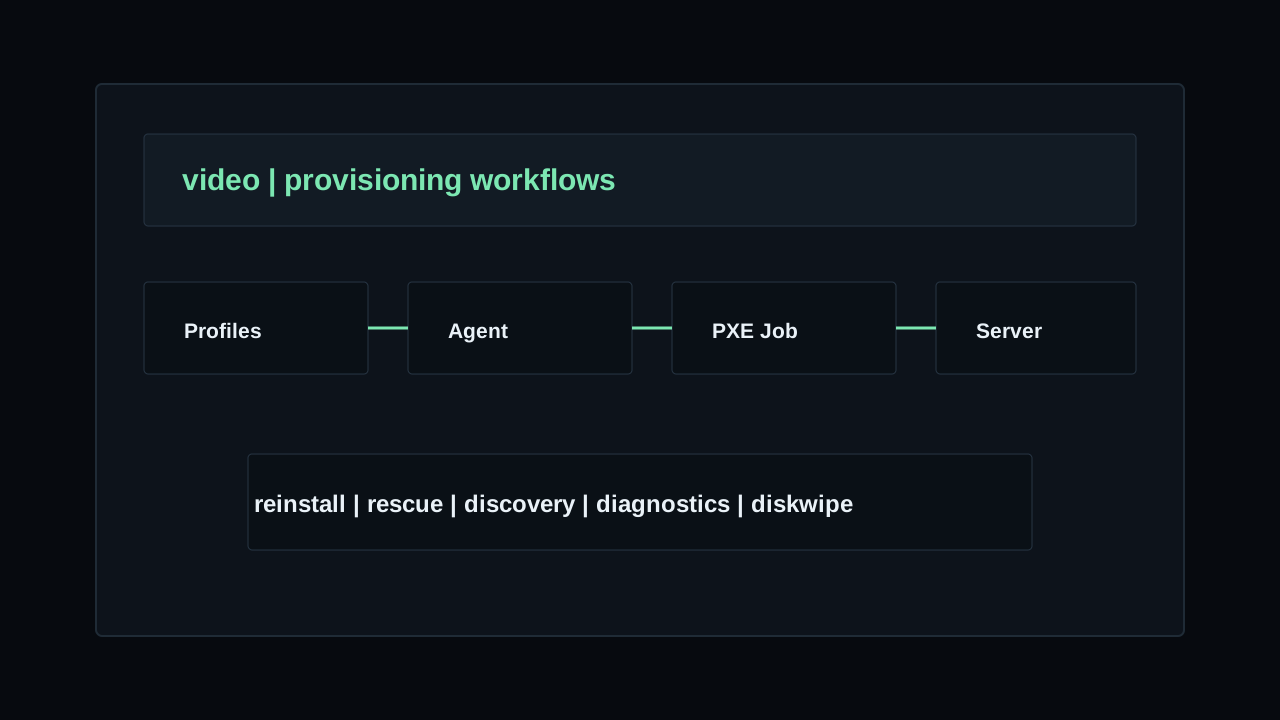
Provisioning starts from a server detail page. Before the action buttons become available, the server must have a rack, the rack must have an online agent, the server must have a MAC address and the server must have a primary IP address.
BMC access is recommended for automatic power and boot control. If the server cannot be controlled through BMC, the job may still need an operator to boot the machine into the correct PXE flow manually.
Profiles
Open Templates > Profiles to manage provisioning profiles. A profile tells DCIM which operating system, installer template and runtime assets should be used by a job.
Status
Use
ACTIVE when the profile is ready to be selected by jobs. Use INACTIVE while the profile is being prepared or should no longer be used.Profile Type
Use
TEMPLATE for normal OS reinstall jobs. Use RESCUE for rescue environments, DISCOVERY for hardware discovery and DISKWIPE for destructive disk wipe workflows.Template Key
Select the renderer that matches the profile. Examples include
DEBIAN_PRESEED, UBUNTU_AUTOINSTALL, REDHAT_KICKSTART, PROXMOX_AUTOINSTALL, OPENSUSE_AGAMA, WINDOWS_SETUP, RESCUE_LIVE, DISCOVERY_LIVE and DISKWIPE_LIVE.OS Type, OS Family and OS Version
These fields describe the operating system that the profile installs or boots. Keep the OS version aligned with the mirror and bundle used by the profile.
Default DNS 1 and Default DNS 2
These are the DNS resolvers passed to install templates when the operating system needs resolver values during installation.
Bundle URL
The bundle URL points to a prebuilt template bundle, usually a
.tar.gz file. Agents download and extract this bundle before they can serve the profile locally.Mirror URL and ISO URL
The mirror URL should match the selected OS version. The ISO URL is used by templates that need an installer ISO, such as live-server based installs.
Scripts
Open Templates > Scripts to create reusable post-install scripts. Scripts are selected during reinstall and run at the end of the install process when the selected profile supports them.
Profiles
Select the reinstall profiles that are allowed to use this script by default. When a server is reinstalled, DCIM only shows scripts compatible with the selected profile.
Content
Add the shell or PowerShell content that should run after installation. Keep scripts idempotent where possible, because operators may reuse them across many servers.
Notes
Use notes to explain what the script changes, which operating systems it supports and any risk the operator should know before selecting it.
ISOs
Open Templates > ISOs to store reusable ISO records. ISOs are installed on online agents so they can be used by local workflows that need a bootable image.
Name and Repository URL
Use a name that identifies the ISO clearly, such as
Ubuntu 24.04 LTS. The repository URL must be a direct URL to the remote ISO file.Install ISO
Use
Install ISO for one ISO or Install All for all active ISOs. DCIM creates install jobs for online agents and skips agents that already have a pending or running install job for the same ISO.Install profiles on agents
Profiles with a bundle URL must be installed on agents before the agents can serve those templates locally. Use
Install Profile on one profile to activate it when needed and queue install jobs, or Install All to prepare all active installable profiles.DCIM creates install jobs only for agents that are
ONLINE. If an agent already has a pending or running install job for the same profile, that target is skipped.Run provisioning jobs
Open Devices > Servers, select a server and use the action menu in the server header. DCIM disables actions when the required rack agent, MAC address, primary IP or profile type is missing.
Reinstall
Reinstall uses a
TEMPLATE profile. Enter the hostname and password, select the profile, choose compatible scripts when available and review the storage layout before starting.System layout controls the operating system disk or disks. Data layout is optional and can mount separate storage at a path such as
/data. For Linux templates, boot and swap sizes are entered in MiB.Wipe all disks
This option is destructive. When enabled, DCIM wipes all disks as part of the reinstall workflow. Leave it disabled when you only want the selected system or data disks to be touched.
The option is available only when a
DISKWIPE profile exists.Rescue
Rescue uses a
RESCUE profile. Select the rescue profile, set the temporary password and start the job. Use rescue when an installed operating system needs manual repair.Discovery
Discovery uses an active
DISCOVERY profile and boots the server into the discovery environment. Use it to collect hardware facts and improve inventory accuracy before production use.Diagnostics
Diagnostics uses an active
DIAG profile. System Health collects broad system, CPU, memory, storage, network, BMC and kernel signals. Memory Test exercises available RAM and records patterns, ECC counters and DIMM inventory. Disk Test reads the complete surface of every eligible physical disk and compares SMART telemetry before and after the test.Disk Test is read-only by default. Destructive mode writes and verifies every eligible physical disk and permanently removes its data. Each completed job creates a separate report in the server Diagnostics tab.
The Memtest86+ 7.20 preboot diagnostic runs outside Linux and displays its result in the remote console. It does not create a persisted diagnostic report.
Diskwipe
Diskwipe uses a
DISKWIPE profile. Choose Fast wipe to clear partition tables and filesystem signatures, or Full wipe to write zeros across the disk. Full wipe can take a long time on large disks.This action cannot be undone. The modal requires typing
WIPE before the job can start.Job monitoring
Use the server Jobs tab or System > Jobs to follow job status, steps, logs and failures.
A server can only have one active PXE provisioning job at a time. Wait for the current job to complete, fail or be cancelled before starting another reinstall, rescue, discovery, diagnostics or diskwipe job.
Provisioning video