User management starts in
Overview > Users. This page is for operators who manage internal admin users and customer access users.DCIM separates a
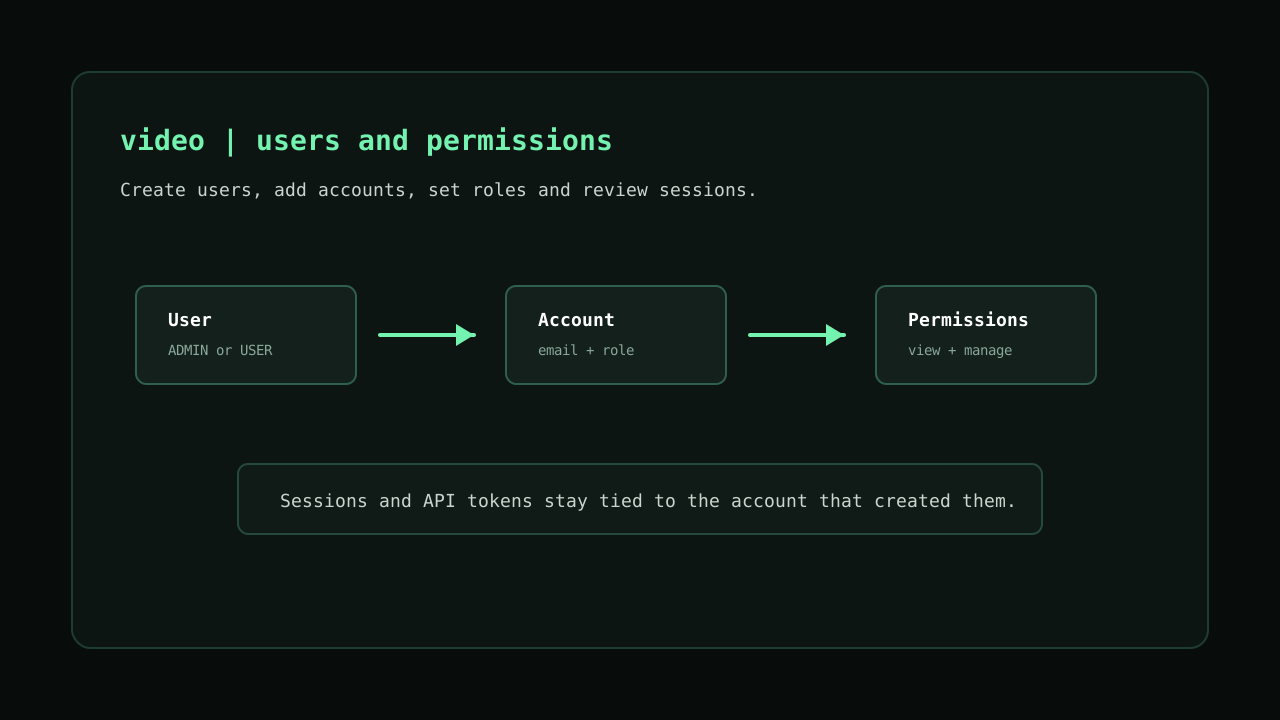
User from an Account. The user is the main identity or organisation. Accounts are the individual login emails inside that user. A simple internal user normally has one account; a customer user can have multiple accounts for different people in the same organisation.The first owner is created during first setup. Keep at least one active owner in the system. DCIM prevents changes that would leave the installation without an active owner account.
Create a user
Open
Overview > Users and use Create User. The form creates the user and the first account at the same time.Name
Use a clear display name. For internal staff, use the person or team name. For access users, use the customer or organisation name.
This is the login email for the first account. Emails must be unique across all accounts in DCIM.
Phone and Timezone
Phone is optional. Timezone controls how dates are shown to that account. Use the operator or customer timezone when known; otherwise keep the default.
Password
Set an initial password and ask the account owner to change it from their account page after the first login. Avoid shared passwords between operators.
User role
User role decides which side of DCIM the user belongs to. It does not replace the account permissions. Permissions still decide what the account can view or manage inside that side of the product.
ADMIN
Use
ADMIN for internal DCIM operators. Admin users sign in to the admin dashboard and can be given permissions for inventory, infrastructure, IPAM, provisioning, jobs, logs, backups and settings.USER
Use
USER for access portal users. These users are redirected to the access portal and only see resources that belong to their user, such as assigned servers, related jobs and related logs.Access portal owners also see Settings, where they can manage accounts and API tokens for their own user.
Account role
Account role is the starting permission profile for the login account. When the role changes, DCIM resets the permission switches to that role default set.
OWNER
Owner accounts start with all permissions enabled. Only an owner can create, update or delete another owner account. Keep this role limited to people who are allowed to control access.
ADMIN
Admin accounts also start with all permissions enabled, but they cannot manage owner accounts unless they are owners themselves. Use this role for trusted operators who do not need ownership control.
SUPPORT and VIEWER
Support and viewer accounts start with permissions disabled. Enable only the specific view and manage permissions they need. This is useful for read-only access, limited support access or customer portal accounts.
Permissions
Permissions are shown when updating a user or an account. They are grouped by resource and normally have two switches:
View and Manage.View permissions
View permissions allow the account to open and read a section, such as users, servers, switches, IPAM, profiles, scripts, ISOs, jobs, logs, backups or license information.
Manage permissions
Manage permissions allow the account to change data or start actions in that section. Examples include creating servers, updating switch ports, running jobs, editing subnets, installing profiles, managing backups or changing users.
Shared by role inside the same user
Permission overrides are stored by user and account role. If one user has two accounts with the same account role, those accounts share the same permission set for that role.
Actions can need more than one permission
Some workflows need more than one permission. For example, a remote console action needs server visibility and remote console management. Provisioning and switch actions also depend on job permissions because they create agent jobs.
Status
Status controls whether the user and its accounts can sign in. Both the user and the account must be in a sign-in capable status.
ACTIVE and PENDING
These statuses can sign in. Use
ACTIVE for normal accounts. Use PENDING only when the account is being prepared but should still be allowed to complete access.INACTIVE and SUSPENDED
These statuses block sign-in. Use them when access should be paused without deleting the user. If access must stop immediately, also revoke active sessions from the sessions page.
Manage accounts
Open a user to see its accounts. Add another account when more than one person should sign in under the same user or customer organisation.
Create account
The account form asks for name, email, phone, timezone, account role, status and initial password. The email becomes the login email for that account.
Update account
Use update to change the account profile, reset the password, change role, change status or adjust permissions. Leaving the password field empty keeps the current password.
Delete account
DCIM does not allow deleting your own account. It also does not allow deleting the last account from a user through the account delete action; delete the user when the whole user should be removed.
Account page and sessions
Operators manage their own profile from
Account. The Users page is for managing other users, not for editing your own account.Profile
The account page lets the signed-in person update their name, email, phone, timezone and email notification preference. Owners can also update the parent user name from this page.
Password
The password section changes the signed-in account password. If OTP is enabled in system authentication settings, DCIM sends a code before confirming the password change.
Sessions
Open
Overview > Sessions to review all sessions. Use invalidate or delete when an account should be logged out. The account page also lets a user revoke their own active sessions.API tokens
API tokens are managed from the user detail page. They are covered in more detail in the API documentation, but user role and scopes are configured here.
Token role
API token role must match the user role. Admin users create admin tokens. Access owners create user tokens scoped to their own resources.
Scopes
Admin users can use all token scopes. For access users, an admin can limit which scopes are available before tokens are created. A token cannot use a scope that is not allowed for that user.
Allowed IPs and expiry
Use allowed IPs to restrict where the token can be used from. Set an expiry when the token is temporary. DCIM shows the full token only once, immediately after creation.
Operational notes
Use individual accounts instead of shared logins. This keeps logs, sessions and support actions tied to the person who performed them.
Give new operators the lowest useful role first, then enable only the permissions they need. Review owner accounts regularly.
When disabling a user after an incident or staff change, change the status and revoke active sessions so existing browser sessions are closed.
Users video