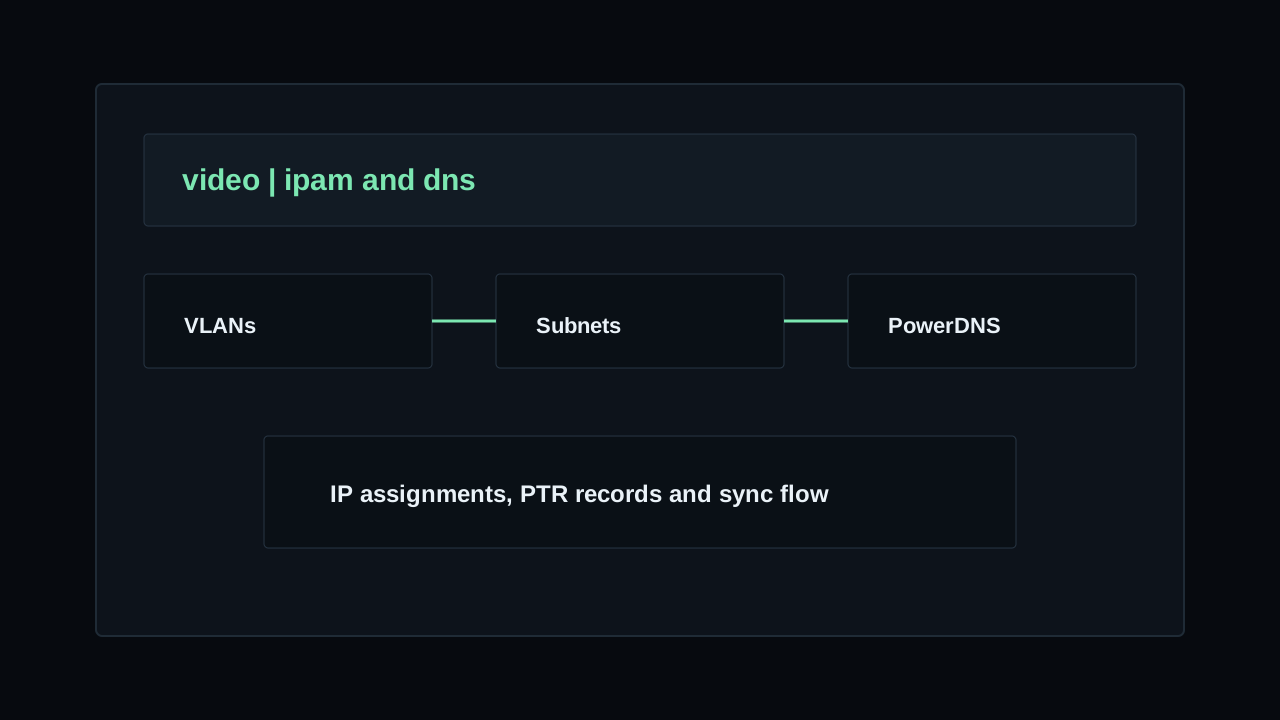
IPAM lives under
IPAM in the admin menu. Start with VLANs when you separate networks by VLAN ID, then create subnets and add or generate the IP pool.IP records can be assigned to servers or switches. A server needs an assigned IP before provisioning jobs can run, so keep IPAM ready before starting reinstall, rescue or discovery workflows.
VLANs
Open
IPAM > VLANs when the datacenter uses VLAN tagging. VLANs are optional, but creating them first makes it easier to group subnets by the real network layout.Datacenter
Select the site where the VLAN exists. VLANs are scoped to one datacenter, so only VLANs from the datacenters selected on the subnet are available when creating or updating a subnet.
VLAN ID
Enter the numeric VLAN tag used by your network. The value must be between
1 and 4094.Name and Notes
Use a clear name such as
Public Network, Private Network or Management. Notes are useful for switch configuration details or internal routing information.Subnets
Open
IPAM > Subnets and use Create Subnet. A subnet can be associated with one or more datacenters and can optionally be attached to VLANs and a PowerDNS PTR zone.Datacenters and VLANs
Select every datacenter where this network range is valid. This supports shared networks that exist in more than one site.
If the subnet belongs to VLANs, select the VLANs after selecting the datacenters. DCIM only accepts VLANs that belong to one of the selected datacenters.
CIDR
Enter the subnet in CIDR format, for example
192.168.1.0/24 or 2001:db8::/64. DCIM validates the CIDR and calculates the gateway, mask and prefix shown in the subnet list.Create pool
Enable this when you want DCIM to create the usable IP records immediately after creating the subnet. Pool generation is available for IPv4 subnets only. Existing IP records are kept and duplicated addresses are not created.
Notes
Use notes for routing context, upstream information or operational warnings that should stay visible to the team managing this range.
PowerDNS integration
DNS support is based on PowerDNS. First create a DNS integration in Integrations, then attach that integration to the subnet that owns the reverse zone.
Integration URL
Use the exact PowerDNS API base URL exposed by your PowerDNS server or proxy, such as
https://pdns.example.com/api/v1. DCIM uses this base URL when listing zones and updating PTR records.Server ID
Use the PowerDNS server ID that contains the zones. In most PowerDNS installations this is
localhost.API Key
Enter a PowerDNS API key that can read zones and manage PTR records. Keep this key dedicated to DCIM where possible.
DNS Integration and PTR Zone
On the subnet, select the DNS integration and then select the PTR zone from the zones returned by PowerDNS. DCIM requires both fields together: a PTR zone without an integration is not valid, and an integration without a PTR zone cannot update PTR records.
IP addresses
Open a subnet to view its IP drawer. The drawer shows total, free, reserved and used addresses. Use
Add IP when you need to add one address manually or when the subnet is IPv6.Address
Enter an IP address inside the usable range of the subnet. DCIM rejects addresses outside the subnet range.
Assign Server or Assign Switch
Assign the IP to one target only. A subnet IP can belong to a server or to a switch, but not both. The target must be in one of the subnet datacenters.
Primary IP
Mark the main server address as primary. DCIM uses the primary IP as the main operational address shown on the server and required by provisioning flows.
Reserved IP
Use reservation for addresses that must stay unavailable, such as gateways, VRRP addresses, upstream equipment or manually reserved customer addresses. Reserved IPs cannot be assigned to a server or switch.
PTR records
The
PTR field is enabled when the subnet has a PowerDNS integration and PTR zone. Saving a PTR value writes the reverse DNS record to PowerDNS and stores the value in DCIM.PTR value
Use a fully qualified DNS name, for example
server01.example.com.. DCIM normalises DNS names with a trailing dot before writing them to PowerDNS.Sync DNS
Use
Sync DNS on a subnet when PowerDNS already contains PTR records and DCIM needs to import them. This sync reads PTR records from PowerDNS into DCIM for that subnet.Existing DCIM PTR values for the subnet can be replaced during sync. Use it carefully when PowerDNS is the current source of truth.
Before provisioning
Create the server in Inventory, assign an IP from the correct subnet and mark the main address as primary before running provisioning jobs.
If provisioning says the server needs an assigned IP address, return to the subnet drawer and confirm that the IP is assigned to that server.
IPAM video