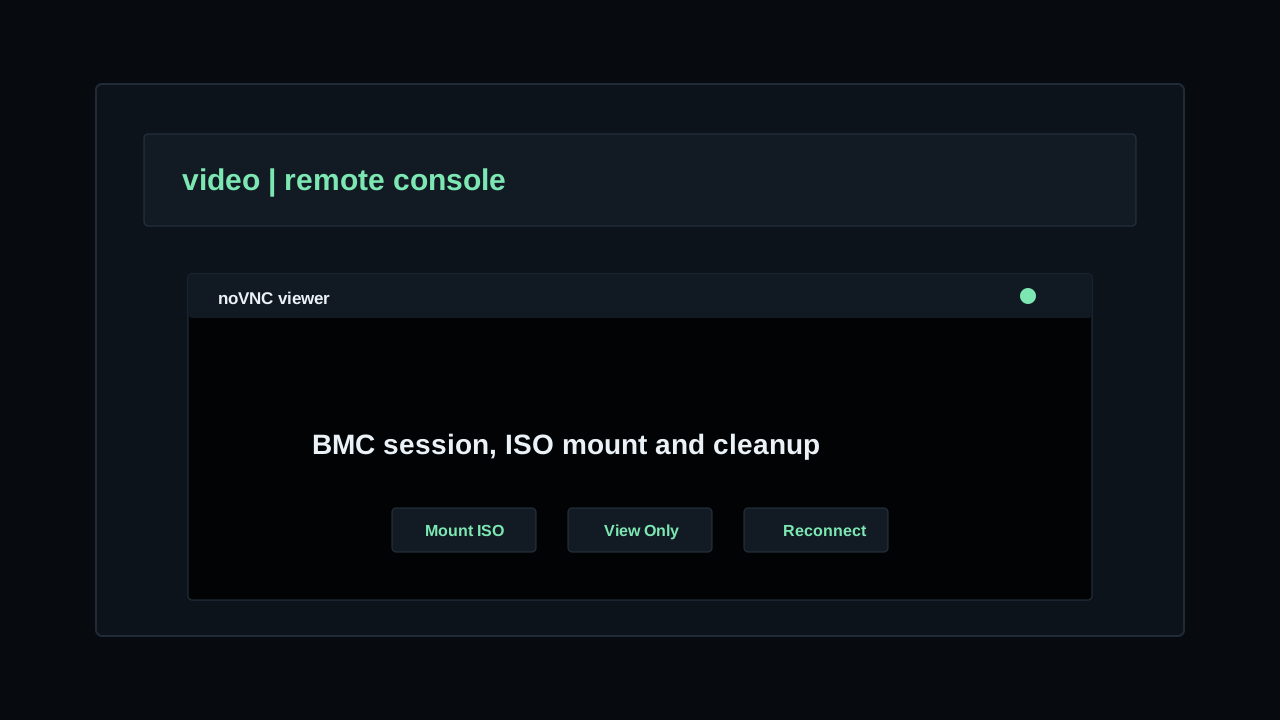
Remote console is used when an operator needs to see the server screen, enter BIOS/UEFI setup, interact with an installer or mount an ISO when the selected viewer supports virtual media.
The button is available from the server detail page, beside the power controls. It is not a separate menu item. Open Devices > Servers, select the server and use the remote console icon in the header actions.
Requirements
Remote console depends on the server BMC and on an online rack agent. If one of these parts is missing, DCIM disables the button or shows why the action cannot start.
Rack agent
The server must be assigned to a rack and that rack must have an
ONLINE agent. The agent runs the local remote-console container and exposes the browser viewer endpoint.See Agents if the server header says the rack has no agent or the assigned agent is not online.
BMC access
The server must have BMC access configured with host, protocol, port, username and password. Remote console also requires a supported console type for the server hardware.
Redfish can be used for power actions and BMC facts, but it does not by itself provide the browser remote console workflow.Remote Console type
Edit the server BMC and set
Remote Console to the BMC viewer type used by the hardware. NONE disables remote console.The supported types are
SUPERMICRO_JAVA, SUPERMICRO_HTML5 and ASUS_JVIEWER. Select one only when the BMC model uses that console.Permissions
The operator needs permission to view the server and manage remote console. Without that permission the viewer and session actions are not available.
Console compatibility
The selected console type determines which BMC viewer the agent starts and which controls are available in DCIM.
Supermicro Java
SUPERMICRO_JAVA runs the legacy JNLP iKVM viewer. Use it when the BMC exposes the Java console and its TLS certificates are still valid.Some Supermicro firmwares contain a fixed iKVM certificate that expired on May 17, 2026. On affected BMCs the Java viewer can stop with a connection failure even when the BMC credentials are correct.
Supermicro HTML5
SUPERMICRO_HTML5 opens the BMC native HTML5 viewer in an isolated browser on the rack agent. It uses the BMC CGI session and does not depend on Redfish.Use it as the alternative to Java when the BMC exposes an HTML5 console. ISO mounting is not supported, and the session remains in scale-to-fit mode because this runtime does not support remote desktop resizing.
ASUS JViewer
ASUS_JVIEWER runs the ASUS JNLP viewer. ISO and resize controls are available when they are supported by the BMC session.Create a session
Click the remote console icon on the server header. If no session exists, DCIM creates a
Create Remote Console job and sends it to the rack agent.Pending state
While the job is queued or running, the remote console button shows a pending state. Wait for the job to complete before clicking again.
Open viewer
When the session is running, the same button opens
/console/<server_id> in a separate browser window. If the browser blocks popups, allow popups for the DCIM dashboard and click the button again.One active session
A server can have only one active remote console session. If a session is already running, the button reopens the existing viewer instead of creating a second session.
Viewer controls
The viewer uses a browser-based VNC screen. The header shows the connection status, the console type, the agent name and the current session reference.
Mount ISO
Use
Mount ISO inside the viewer when the BMC session should attach an ISO. DCIM shows active ISO records from Templates > ISOs.Mounting an ISO creates a
Mount Remote Console ISO job. The agent enforces ISO size and free-space limits before attaching the image.ISO mounting is not available for
SUPERMICRO_HTML5 sessions.View Only
Enable view-only mode when you want to watch the console without sending mouse or keyboard input to the server.
Resize Session
Use resize mode when the selected runtime can resize the remote desktop to the browser viewport. Use scale mode when you want the existing console resolution to fit inside the window.
SUPERMICRO_HTML5 remains in scale-to-fit mode and does not show the resize control.Reconnect
Use reconnect when the browser loses the VNC connection but the remote console session is still running.
Close and cleanup
Close the session from the server header by clicking the close button beside the active remote console button. DCIM creates a
Delete Remote Console job and the agent stops the local container.Automatic expiry
Running sessions expire after inactivity. DCIM refreshes the session while the viewer is open, and the cleanup task closes stale sessions when they are no longer being used.
Agent restart
When the agent starts, it also cleans stale remote-console containers and resets sessions that were left open by a previous shutdown.
Troubleshooting
If the button is disabled, check the server BMC, the remote console type and the rack agent status first.
If the viewer opens but no VNC endpoint is available, wait for the create-session job to finish and check the server Jobs tab for errors.
If ISO mounting fails, confirm that the ISO is active, the repository URL points to a real file and the agent has enough local space to stage the image.
If Supermicro Java stops with a connection failure after its built-in iKVM certificate expires, select
SUPERMICRO_HTML5 when that BMC provides an HTML5 console. This path does not require Redfish, but it does not provide ISO mounting.If a Supermicro HTML5 session fails, confirm that the BMC HTML5 console opens directly and that the rack agent can reach the BMC HTTPS address.
Remote console video