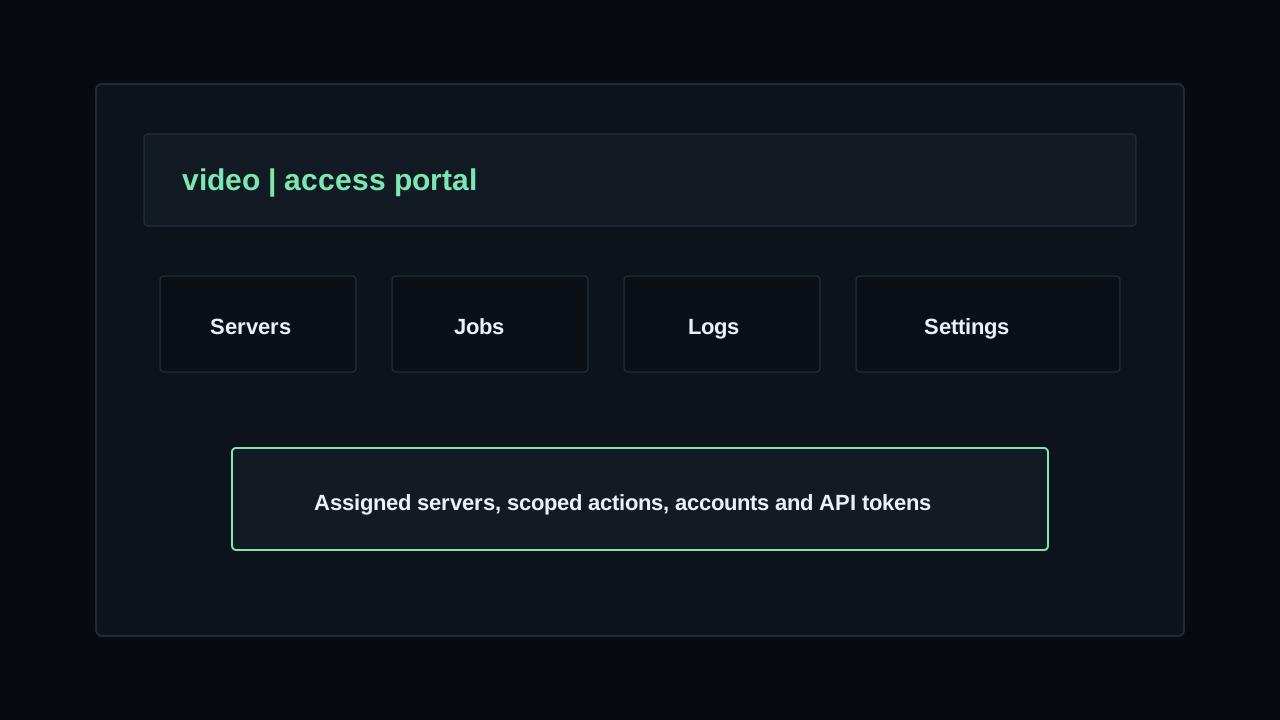
The access portal is used by
USER accounts. After sign-in, these users are redirected to /access and only see the servers, jobs, logs and settings that belong to their user or organisation.Admin users manage the full platform. Access users operate their assigned infrastructure. This separation keeps customer or limited-user work away from global inventory, infrastructure, IPAM and system settings.
Access permissions are configured from Users & permissions. If a menu item, tab or action is missing, the account probably does not have the related permission.
Portal menu
The access menu contains
Servers, Jobs, Logs, API and, for owner accounts only, Settings.Servers
Servers is the main workspace. It shows the servers assigned to the signed-in user organisation and opens each server detail page.
Jobs
Jobs shows provisioning, power and remote operation jobs related to visible servers. Use it to follow active work or inspect failures.
Logs
Logs shows activity related to visible servers and access activity. Use it to review who started actions, when they happened and which target was affected.
API
API opens the generated access API reference at
/developer/api?audience=access. The API reference is generated by the installed product, so it stays separate from this documentation.Settings
Settings is visible only to owner accounts. Owners use it to manage accounts and API tokens for their own user.
Servers list
Open
Servers to see assigned servers. The list shows power state, server name, label or hostname, primary IP, hardware summary and lifecycle status.Search
Use search when the user has many servers. The list can be searched by name, label, hostname or MAC address.
No servers assigned
If the page says no servers are assigned, the user exists but has no visible infrastructure yet. An admin must assign servers to that user before they appear in the portal.
Server detail
Open a server to view its operational detail. The page shows a quick overview, current jobs and tabs for overview, IPAM, inventory, diagnostics, logs and jobs. Some tabs are hidden when the account does not have the required permission.
Overview
Overview shows datacenter, rack, room, label, hostname, MAC address, boot mode, notes and BMC information. It also shows the current power state when BMC is configured.
IPAM
IPAM appears when the account can view subnet data. It shows assigned IP addresses, primary IP, PTR, subnet, gateway, mask and prefix.
Inventory
Inventory appears when the account can view parts. It shows server components such as disks, RAM, NICs, vendor, model, value, serial, WWN and notes.
Diagnostics
Diagnostics shows the server report history with profile, status, findings, completion time and originating job. Open a row to inspect the complete System Health, Memory Test or Disk Test result.
Logs and Jobs
Logs and Jobs appear when the account has the related view permissions. These tabs show activity and jobs filtered to the selected server.
Server actions
Actions depend on permissions, BMC configuration, rack placement, agent status, MAC address, primary IP and available profiles. If an action is disabled, read the tooltip or notice shown on the server page.
Power actions
Power On, Reboot, Power Off and refresh power status require BMC access and job management permission. Power Off can impact running workloads, so use it only when the server should be stopped immediately.
Remote console
Remote console requires BMC remote console configuration and remote console management permission. If a session exists, the same button opens it. If no session exists, DCIM creates a remote console job first.
Reinstall, Rescue, Discovery, Diagnostics and Diskwipe
Provisioning actions require an online rack agent, a server MAC address, a primary IP and the related profile type. Diagnostics reboots the server into a live health-check environment. Diskwipe is destructive and requires typing
WIPE before it starts.Current Jobs
Current Jobs shows active work for the server. Provisioning jobs can be cancelled when the account has job management permission. Cancelling removes PXE reservations and returns the server to the default boot flow.
Jobs and logs
The portal-level
Jobs and Logs pages work like filtered operational history for the access user. They do not expose unrelated platform data.Jobs page
Use Jobs to follow server operations, open job details and cancel active provisioning jobs when permitted. Job status, steps and events are explained in Jobs & logs.
Logs page
Use Logs to review access activity by level, method, category and date. Click a log row to open the full details drawer.
Owner settings
Owner accounts see
Settings. This page manages the user organisation, its accounts and its access API tokens.Accounts
Owners can create accounts for other people in the same user, update account profile fields, set account role, change status, reset passwords and adjust permissions.
DCIM does not allow an account to delete itself. It also prevents deleting the last account from the user through the account delete action.
Permissions
Account roles provide default permissions. Updating an account role resets the permission switches to that role default set. Enable only the view and manage permissions that the account needs.
API tokens
Owners can create user API tokens using the scopes allowed for their user. Token creation shows the full token only once. Store it before closing the modal.
Use expiry dates for temporary access and allowed IPs when a token should only be used from known networks. Rotate a token when the value may be exposed. Revoke it when it should stop working immediately.
Account page
The signed-in person can manage their own profile and security from
Account. This is separate from owner Settings.Profile
Profile lets the account update name, email, phone, timezone and email notifications. Owner accounts can also update the parent user name.
Password
Password changes may require a one-time code when OTP is enabled in system authentication settings.
Sessions
Sessions shows active browser sessions. Revoke one session when a device should be logged out, or revoke all sessions after a password or security incident.
Access boundaries
Access users cannot see global admin pages such as datacenters, racks, agents, integrations, IPAM management, templates or system settings. They only see the portal data allowed by their user assignment and account permissions.
If a user needs access to more servers, assign those servers to the user from the admin dashboard. If a user can see a server but cannot run an action, review the account permissions and the server prerequisites.
Access portal video