Integrations live under
Infrastructure > Integrations. Use this page when DCIM needs to contact an external provider on behalf of a platform feature.The supported provider options depend on the integration type.
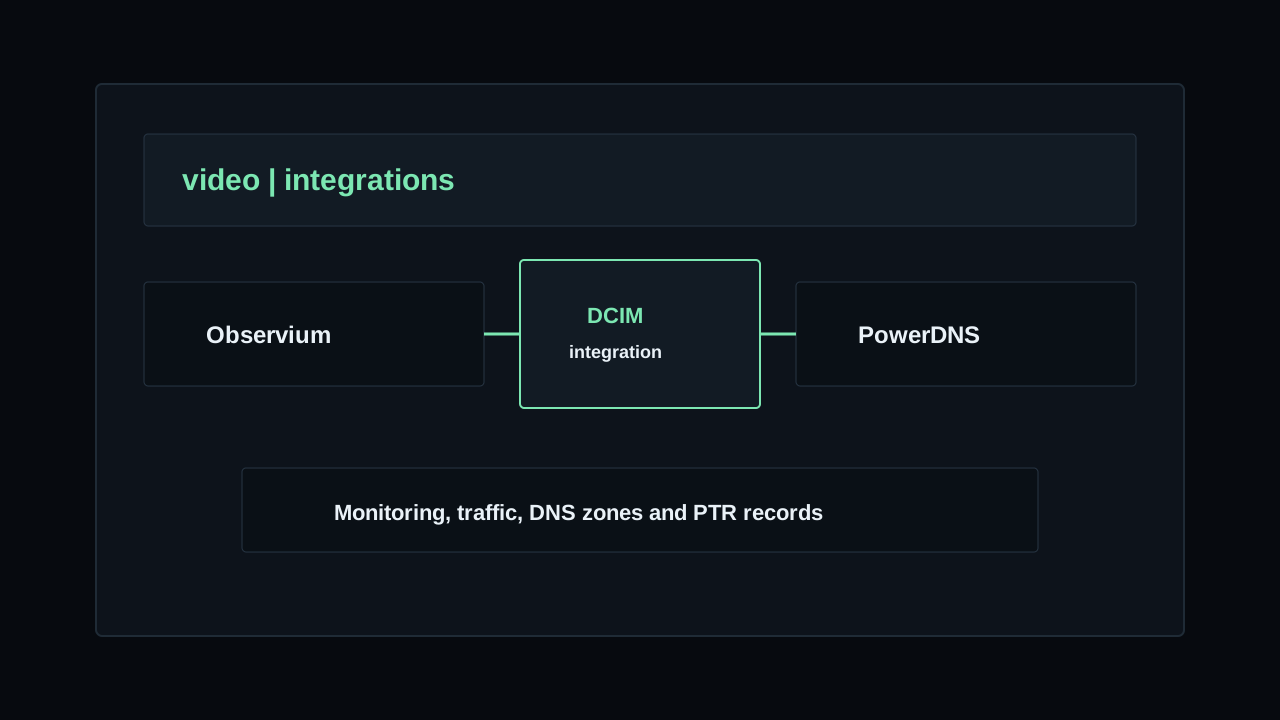
Observium is used for monitoring,PowerDNS is used for DNS automation and TenantOS is used for data imports.Keep integrations named clearly. A name such as
Observium Lisbon or TenantOS Import is easier to recognise later when selecting it from switches, servers, subnets or import tools.What integrations are used for
Monitoring integrations let DCIM read devices, ports and traffic data from Observium. DNS integrations let DCIM read PowerDNS zones and update PTR records from IPAM. Import integrations let DCIM pull inventory data from external source systems before inserting it into DCIM.
Monitoring
Create a
MONITORING integration when DCIM should show traffic data for infrastructure devices. The current provider is OBSERVIUM.After the integration is active, use it on pages that expose monitoring fields, such as Switches.
DNS
Create a
DNS integration when IPAM should connect to PowerDNS. DCIM uses it to list PTR zones, import existing PTR values and save PTR changes from subnet IP records.After the integration is active, attach it to the related subnet in IPAM & DNS.
Import
Create an
IMPORT integration when DCIM should fetch inventory from an external platform. The current external provider is TENANTOS.After the integration is active, use it from Tools > Import data.
Create an integration
Open
Infrastructure > Integrations and use Create Integration. Fill the provider identity first, then the URL and credentials.Name
Use a short operational name that tells the team which external system this record represents. If you have more than one site or provider endpoint, include the site or purpose in the name.
Type
Select
MONITORING for Observium. Select DNS for PowerDNS. Select IMPORT for TenantOS. The type controls which credential fields are shown.Provider
DCIM keeps the provider aligned with the type:
OBSERVIUM for monitoring and POWERDNS for DNS. For import integrations, use TENANTOS. If the type and provider do not match, the integration cannot be saved.URL
Enter the exact API URL exposed by the provider or by your proxy. For Observium this normally looks like
https://observium.example.com/api.php.For PowerDNS, use the exact API base used in your environment, for example
https://powerdns.example.com/api/v1. Do not add an extra API path if your proxy already includes it.For TenantOS, use the base URL of the TenantOS API endpoint that DCIM can reach.
Token
The token field is used by monitoring and import integrations. For Observium, enter an API token that can read devices, ports and traffic data required by DCIM. For TenantOS, enter a read-only API token for the data you want to import.
Server ID and API Key
These fields are used by PowerDNS.
Server ID is usually localhost, unless your PowerDNS API exposes zones under a different server ID.The
API Key must allow DCIM to read zones and manage PTR records. Use a dedicated key where possible.Status
Keep the integration
ACTIVE when DCIM should use it. Set it to INACTIVE when the provider is temporarily unavailable or when you want to keep the record saved without using it.Notes
Use notes for operational details such as the owner of the external service, firewall requirements, proxy location or maintenance contacts.
Test the connection
After saving the integration, open its action menu and use
Test Connection. DCIM contacts the provider API using the saved URL and credentials.Successful test
For Observium, DCIM checks that it can read monitored devices. For PowerDNS, DCIM checks that it can read zones from the selected server ID. For TenantOS, DCIM checks that the API URL and token are accepted.
Failed test
Check the URL, token or API key first. Then confirm that the DCIM server can reach the provider through firewall rules, DNS resolution, TLS certificates and any reverse proxy in front of the provider.
Update or remove an integration
Use
Edit when the provider URL, status, notes or credentials change. Test the integration again after changing connection details.Credential rotation
When editing an integration, leave the credential field empty if you want to keep the current token or API key. Enter a new value only when rotating the credential.
Delete
Delete an integration only when it is no longer used. Linked resources may lose the integration link, so remove it from subnets, switches or other feature pages before deleting the integration record.
Before using it elsewhere
Create the integration, keep it active and run
Test Connection before selecting it inside IPAM, switches or other platform features.If a feature does not show the integration, confirm that the type is correct. DNS pages use DNS integrations, monitoring fields use monitoring integrations and import tools use active import integrations.
Integrations video